Yeastar - Inbound Route
Inbound Route Creation
- Log in to PBX web portal, go to Call Control > Inbound Route, click Add.
- In the Name field, enter a name to help you identify it.
- Optional: Set an "alert info text" to add to Alert-info header in INVITE request for inbound calls.
When receiving an inbound call, the phone will inspect "Alert-Info" header to determine which ring tone it should use for ringing.
- In the Trunk section, select the desired trunks from Available box to Selected box.
The PBX will route inbound calls through this inbound route when external users call the selected trunk number.
- Optional: If you want to route inbound calls based on DID numbers, configure DID Pattern.
The PBX will route inbound calls only when the callers dial the matched DID numbers.
Configure the inbound route destination.
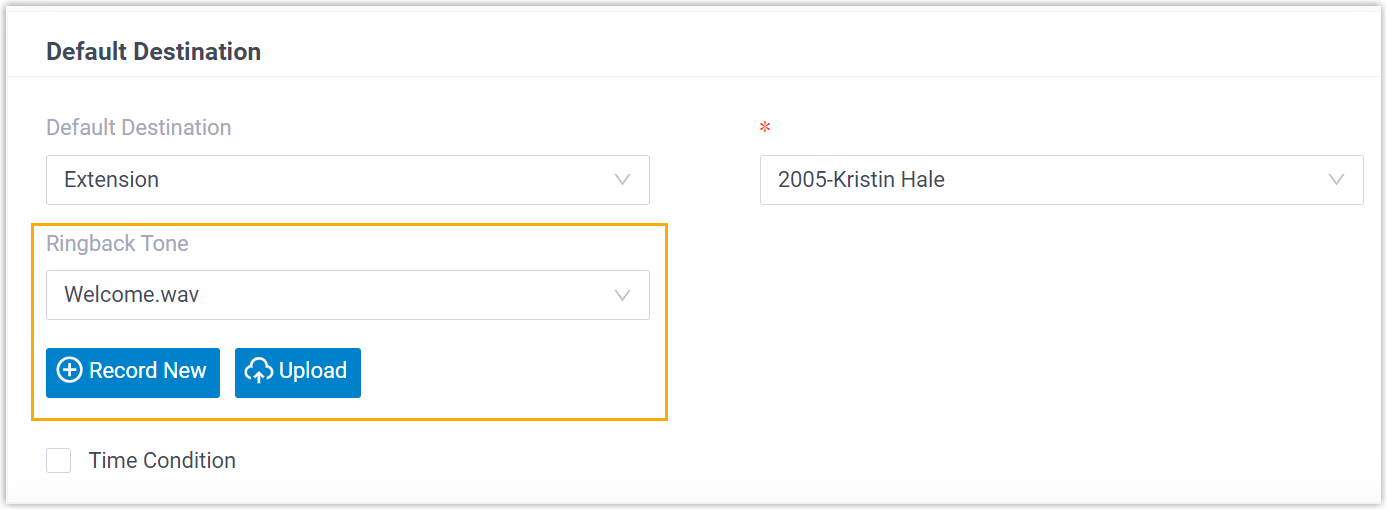
When the destination is set to an extension, you can select or upload a music in the follow-up Ringback Tone field, which will be played to the caller before the extension user answers the call.
- If you want to route inbound calls to one destination whenever the calls reach the system, perform the following operations:
- Keep the Time Condition unselected.
- Configure the Default Destination.
- If you want to route inbound calls to different destinations based on the time, perform the following operations:
- Select the checkbox of Time Condition.
- Select an option from the drop-down list of Time-based Routing Mode.
- Configure the destinations based on the time.
If an inbound call reaches the PBX during the time period, PBX will route the call to the selected destination.
- Optional: If you want to route inbound calls based on the business hours and non-working hours during holidays, select the checkbox of Ignore the Holiday Destination.
Inbound calls during holiday will be distributed to other destinations according to your office hour setting.
- Optional: To play a prompt to callers before routing the inbound calls to the holiday destination, select the checkbox of Play Holiday Prompt During Holidays.

Fax Detection -Email
- Optional: To receive faxes through this inbound route, enable Fax Detection and configure the fax destination.
- Extension: The faxes will be sent to the selected extension.
- For an FXS extension, you need to connect a fax machine to the relevant FXS port to receive faxes.
- For a SIP extension, you need to register the extension on a SIP compatible fax machine.
- Fax to Email: The faxes will be converted to email attachments and be sent to an extension's email address.
Related Articles
Yeastar - PBX to Yeastar NeoGate TA800 Gateway (Peer Trunk Mode)
Yeastar P-Series to TA800 Complete Peer Trunk Integration Guide Document Purpose This document details a complete integration blueprint to deploy a Yeastar TA800 8-Port FXS gateway alongside a Yeastar P-Series PBX without using extension licenses. It ...Yeastar - Create a default Inbound route for a SIP trunk
Create a default Inbound route for a SIP trunk The default route can be used in a few ways 1. all calls no matter what is dialed on the trunk go to one destination 2. I have assigned multiple DIDs in my inbound routes and I want a rule that covers ...Yeastar Inbound routes via DDI number
Yeastar Inbound routes via DDI number In this scenario we are going have multiple numbers assigned to our trunk and our sip trunk is already registered 1.Goto Extension and Trunk /Trunk / DIDs/DDIs Add the DDI numbers assigned to the trunk 2 Call ...Yeastar - Holiday Call Flow
Holiday Call Flow This topic describes how to create holidays for a specific time zone by date, week, and month. Create a holiday by date Creating a holiday by date. Example: Christmas and boxing day fall on the same dates each year 25th and 26th ...YEASTAR - DID Routing Modes
DID Routing Modes Yeastar P-Series PBX System provides four DID matching modes to help you route inbound calls based on DID numbers. DID Number to Specific Extension The inbound calls that match the defined DID number(s) will be routed to the ...