Yeastar - Restore Database / Backup
Restore Database / Backup
- Log in to Yeastar Central Management, go to Cloud PBX > PBX.
- Select a desired PBX, click
 , then select Restore PBX.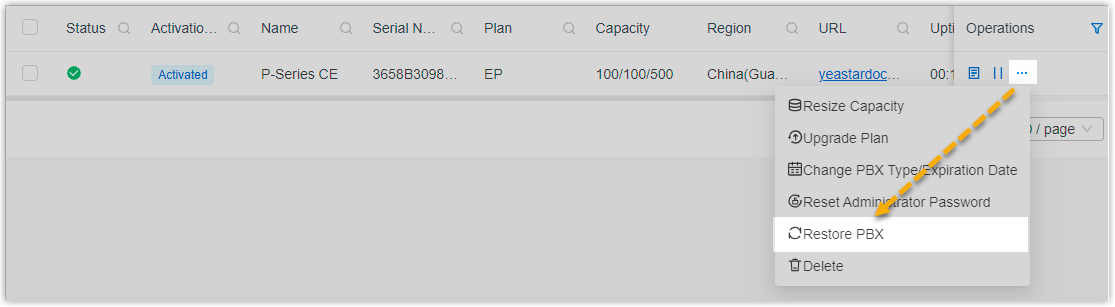
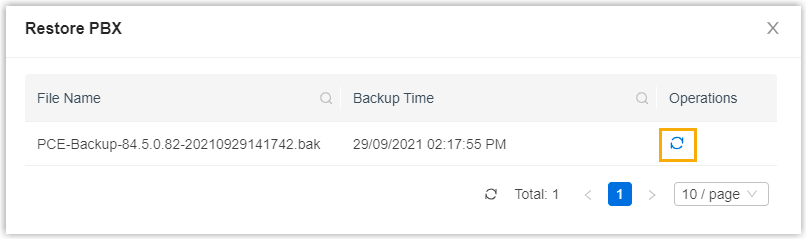
- In the pop-up window, click
 beside the desired backup file, then click Confirm.

INFO: The list displays all the backup files that are generated from backup task for the PBX.
PBX status is displayed as  , and there is a pop-up window prompting that PBX system is restoring from the backup file
, and there is a pop-up window prompting that PBX system is restoring from the backup fileAfter PBX system starts up, the current configurations are overwritten with the backup data, and PBX status is displayed as 
Related Articles
Yeastar - Backup P-Series Cloud PBX
Backup P-Series Cloud PBX Capture Backup Log in to Yeastar Central Management, Login as Administrator to the PBX instance -Take a backup of Instance. You must do this within the instance and not YCM portal (YCM does not give a download file option) ...Yeastar - 3CX Migration to Yeastar
3CX Migration to Yeastar The database of a 3CX can be extracted and loaded into Yeastar PBX. The process consists of 4 steps: Download Backup File from 3CX PBX Delete end devices for auto provisioning onto Yeastar and disable SIP trunks Upload the ...Yeastar - P-Series Software Edition Server Migration
P-Series Self Hosted Server Migration You can migrate the database of a Software Edition Yeastar P-Series. Procedure 1. Take up backup for current system, enable 'License Code and FQDN Settings' option accordingly. 2. Install new server, in wizard ...Yeastar- Yeastar Cloud Manangement Portal Training Deck -Module 6
Click on this link to Download PresentationYeastar P-Series Self-Hosted Migration to Different Platform
Yeastar P-Series Self-Hosted Migration to Different Platform On the current Yeastar P Series PBX Check for new firmware and if available upgrade the Yeastar to the latest firmware Select Maintenance – Upgrade – Check for New Firmware Select Upgrade ...