Yeastar - Set up Function Keys Template
Set up Function Keys for Extensions Using a Template
Step 1. Add a function keys template
- Log in to PBX web portal, go to Extension and Trunk > Extension.
- Click Function Keys Template
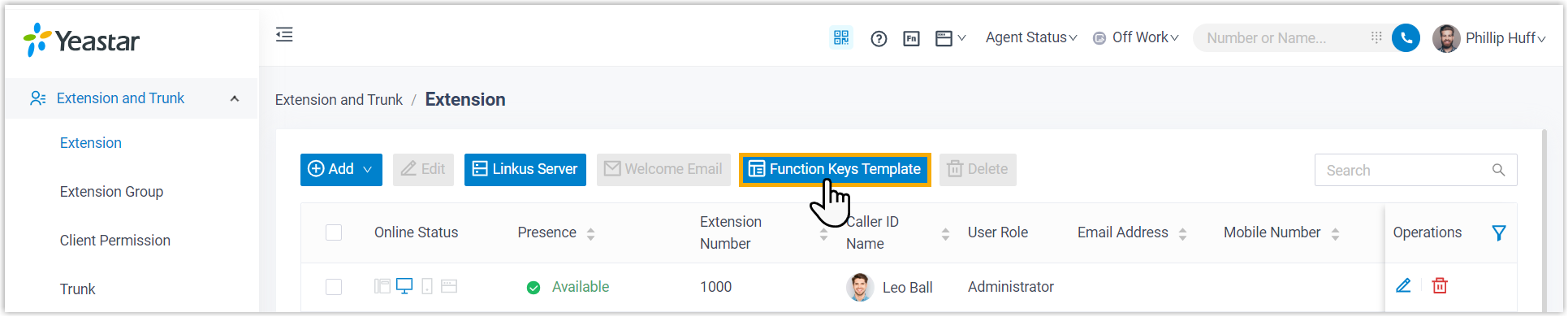
3. Click Add to add a function key template, then configure the following settings
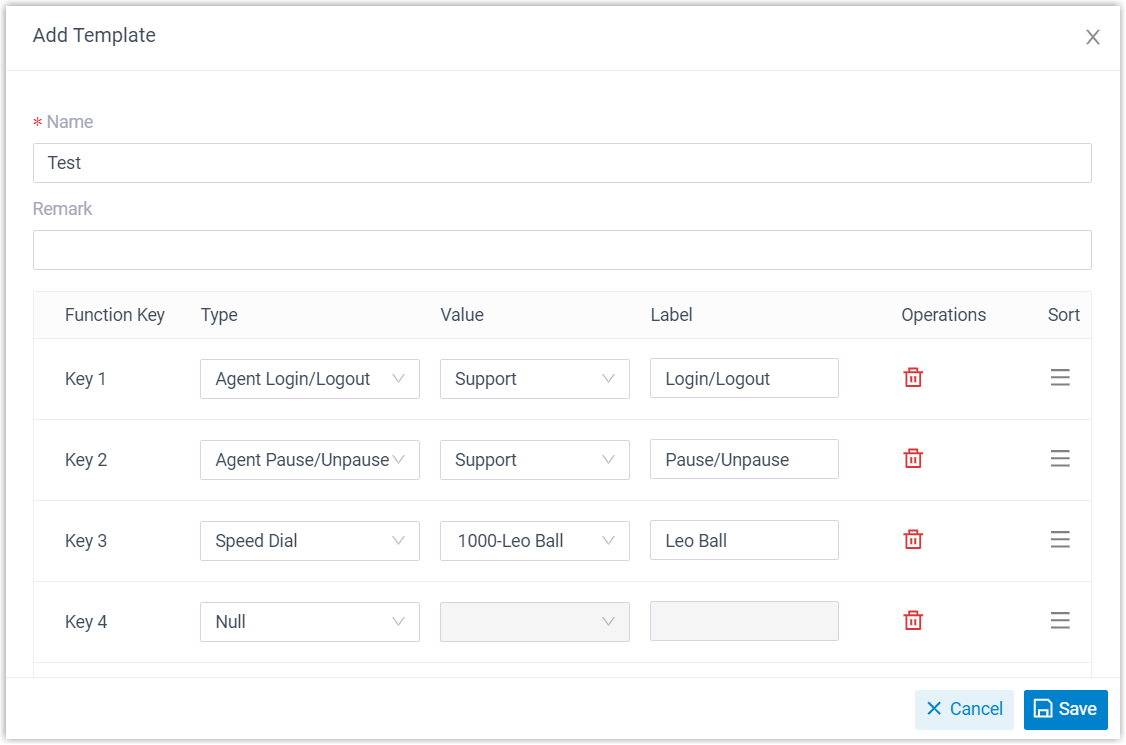
- In the Name field, enter a name to help you identify the template.
- Optional: In the Remark field, enter a short description about the template.
- In the function keys list, configure function keys according to your needs.
- Type: Select a key type.
- Value: Configure a desired value based on the key type.
- Label: Optional. Enter a value to help extension users identify the function key.
- Click Save.
The function key template is created and displayed on the list.
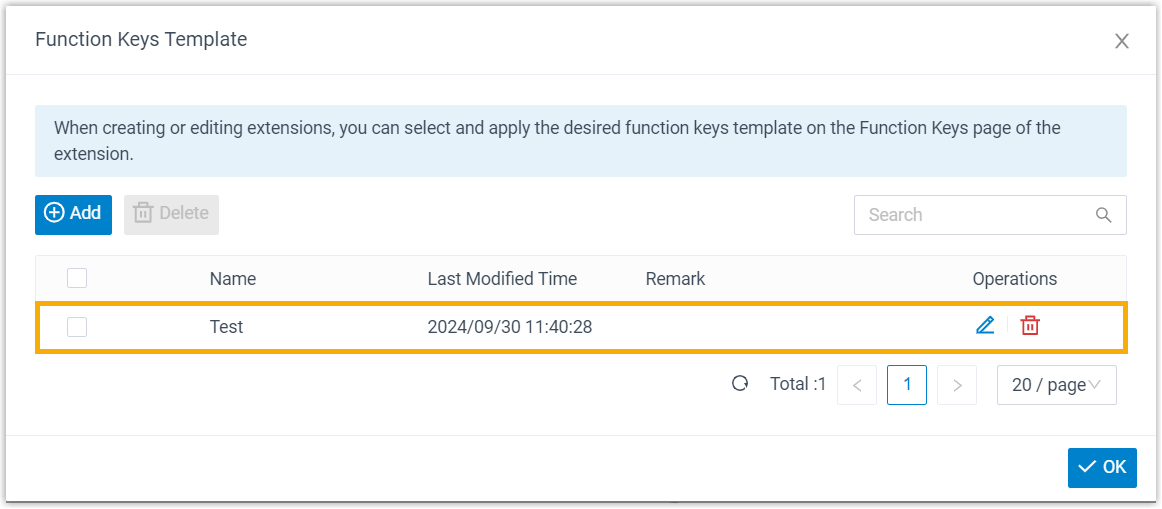
4. Click OK.
Step 2. Apply the function keys template to extensions
1. On the extension list, select the checkboxes of the desired extensions, then click Edit.

2. Under Function Keys tab, select the checkbox of Bulk Edit, then click Apply Function Keys Template
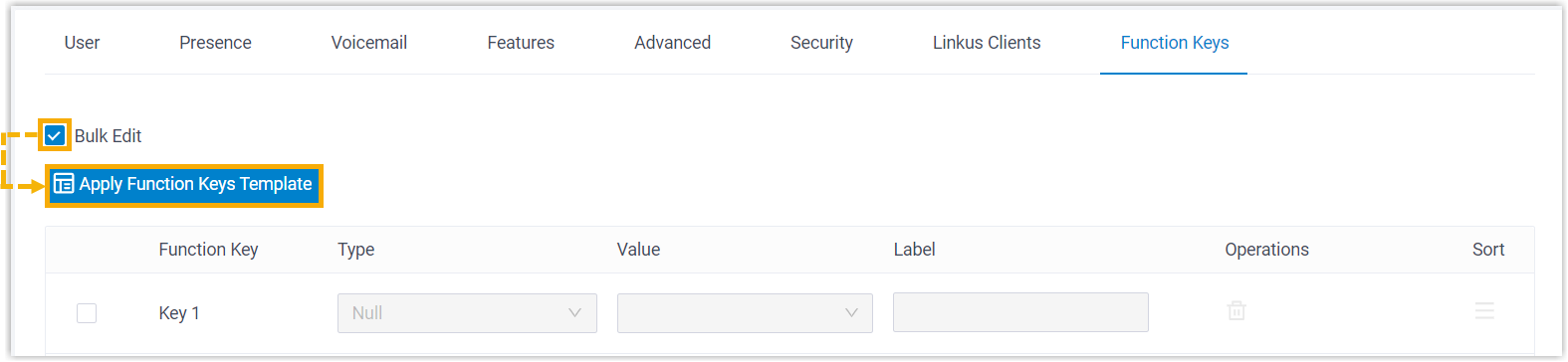
3. In the pop-up window, select the function keys template, then click Apply.
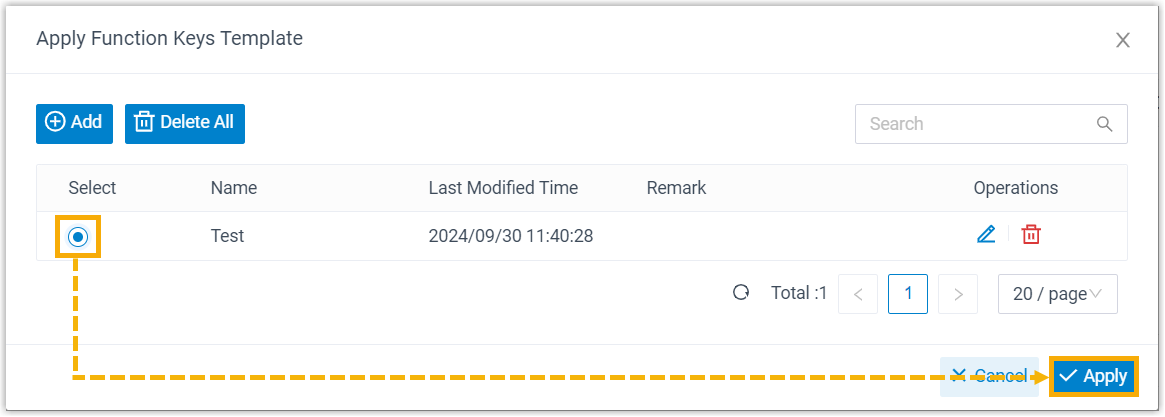
4. Click Save
The function keys are applied to the selected extensions' Linkus Desktop Client, Linkus Web Client & IP Phones

If the extensions have been registered with IP phones via Auto Provisioning, you need to reprovision the phones so as to apply the changes on IP phones
Related Articles
Yeastar - Adjust Function Page Key Count Fanvil V67
The following will guide you in setting the amount of visible function key pages available on the end devices. To adjust the Function Page Key count to the CFG file. This example entry is to changed to 2. Parameter being added to “Customize ...Yeastar - Update a Default Auto Provisioning Template
Update a Default Auto Provisioning Template Yeastar P-Series PBX System regularly provides new template versions to release new features and fix bugs. You can check if a new template is available, and decide whether to update the default template. ...Yeastar-How to Provision Yealink Expansion Module
How to Provision Yealink Expansion Module in P-Series Applicability Model: P-Series Firmware version: Any Template version: See the version mentioned in the guide Yealink Expansion module: EXP40, EXP43, EXP50 Yealink Model: See the models mentioned ...Yeastar - Avaya Custom Configuration File - Latest File_12_09
Avaya Custom Configuration File - Latest File The latest Custom Configuration File for Avaya J series can be downloaded. As updates are release features are added to the configuration file to expanding on all previous additions. Links to Guides for ...Yeastar - CRM Integration
Yeastar CRM integration Pre Configured Templates Yeastar CRM Integration is designed to facilitate quick integration between your PBX and CRM account. Complete the integration in minutes with a step-by-step configuration wizard and enjoy rich ...