Yeastar - CRM Integration
Yeastar CRM integration
Pre Configured Templates
Yeastar CRM Integration is designed to facilitate quick integration between your PBX and CRM account. Complete the integration in minutes with a step-by-step configuration wizard and enjoy rich integration features that bring convenience and efficiency.
The following can be configured oput of box using the template wizard.
Custom CRM Configuration
If your desired CRM is not in the list of ready-made integrations, you can implement a custom integration by creating a CRM integration template to integrate Yeastar P-Series Cloud Edition with a CRM that supports REST API.
Requirements
- PBX Server
- Firmware: Version 84.20.0.74 or later.
- Plan: Enterprise Plan (EP) or Ultimate Plan (UP)
- CRM System: Supports REST API.
Features
The integration of Yeastar P-Series Cloud Edition with a custom CRM via API provides the following key features:
- Click to Call
- Users can launch calls by a single click on the detected numbers from CRM via Yeastar Linkus Web Client.
- Call Popup
- Automatically bring up the contact's profile on the web browser when users (with their Linkus Web Client or Linkus Desktop Client logged in) receive / answer an inbound call from a CRM contact, or finish a call with a CRM contact. In addition, users are able to manually open the contact's profile from the call window during a call with a CRM contact.
- Contact Synchronization
- Synchronize CRM contacts to an associated PBX phonebook when receiving inbound calls from / or initiating outbound calls to CRM contacts.
- Lead or Contact Creation
- A new lead or contact can be created automatically in CRM for unknown inbound calls or outbound calls.
- Call Journal
- All the call activities get logged automatically to CRM when a user ends calls with CRM contacts.
- Call Recording Playback
- CRM users can see and play recordings stored in the PBX from corresponding call log in CRM interface.
Add a CRM Integration Template
Requirements and restrictions
- Requirements
- PBX Server: The PBX server should meet the following requirements.
- Firmware: Version 84.20.0.74 or later.
- Plan: Enterprise Plan (EP) or Ultimate Plan (UP)
- CRM System: Supports REST API.
Restrictions
- Supports to add up to 10 custom CRM integration templates.
Procedure
- Log in to PBX web portal, go to Integrations > CRM.
- In the CRM list, click Custom.
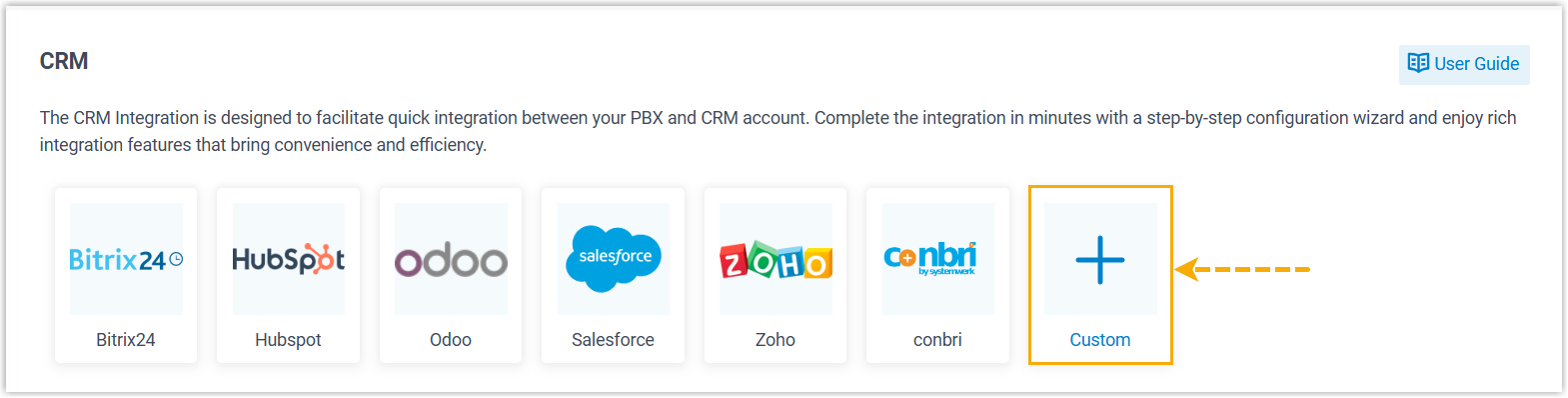
You are redirected to the Template Management page.
- Click Add to add a template.
- In the pop-window, complete the following template settings according to the capabilities the CRM system and your specific requirements.
- Click Save to generate a custom CRM integration template.
Related Articles
Yearstar -Zoho CRM integration - adding users
Q. I have done the integration, but no users, or not all users are mapped. Answer: You will have to assign Telephony to the Zoho user: Login to zoho CRM and go to setup Go to Channel>>Telephony and select view config In this case its taken me to Zoho ...Feature Release _Yeastar P-Series Cloud Edition 84.9.0.18
Yeastar P-Series Cloud Edition 84.9.0.18 Release date: December 7, 2022 New Features CRM Integration Yeastar P-Series Cloud Edition supports the integration with Bitrix24 CRM and Odoo CRM, which can achieve the following features: Click to Call Call ...Yeastar - PBX to Yeastar NeoGate TA800 Gateway (Peer Trunk Mode)
Yeastar P-Series to TA800 Complete Peer Trunk Integration Guide Document Purpose This document details a complete integration blueprint to deploy a Yeastar TA800 8-Port FXS gateway alongside a Yeastar P-Series PBX without using extension licenses. It ...Yeastar - Provisioning Avaya J series handsets Manually
Yeastar - Provisioning Avaya J series handsets Manually Auto Provision Avaya Phone in Yeastar Yeastar - Auto Provisioning - Phones Add the phone Configure Avaya J Series Power on the Avaya J Series Note: If the phone has already been used, you will ...Yeastar - Backup P-Series Cloud PBX
Backup P-Series Cloud PBX Capture Backup Log in to Yeastar Central Management, Login as Administrator to the PBX instance -Take a backup of Instance. You must do this within the instance and not YCM portal (YCM does not give a download file option) ...