Yeastar - Log in to Linkus Web Client
Log in to Linkus Web Client
This topic describes how to log in to Linkus Web Client via a link in Linkus welcome email.
Prerequisites
Make sure you have received a welcome email.
 Note: The login can only be used once
Procedure
- Access your mailbox and find the welcome email.
- Click the login link for Linkus Web Client.
You are directed to Linkus Web Client without entering any credentials.
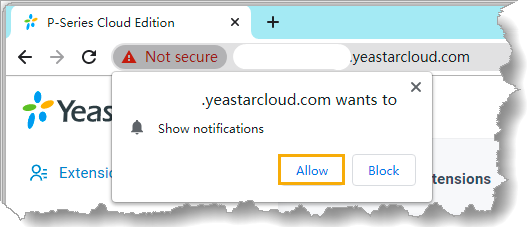
- Allow notifications from Linkus Web Client, so that you can receive notifications when there are incoming calls.
- In the pop-up dialog box, click Allow.
- Read and agree the Privacy Policy Agreement.
- Select the checkbox of I have read and agree to the above agreement.
- Click Confirm.
- In the pop-up window, change user password as needed.
- In the New Password field, enter a new password.
- In the Confirm New Password field, enter the new password again.
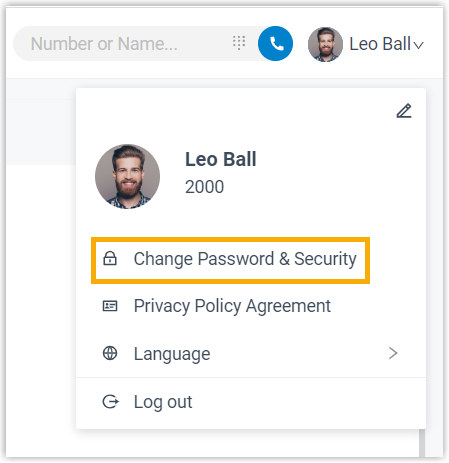
- Click Save.Note:Next time you want to change user password, you can click your account at the top right corner, go to Change Password & Security > Change Password to change password as needed.
What to do next
- Use your user name (email address) and new password to log in to Linkus Web Client again.
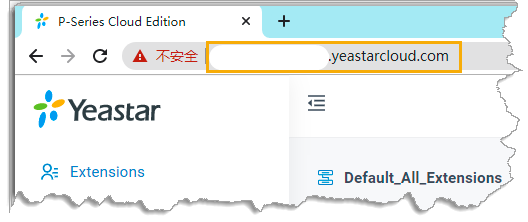
- Note down the domain of Linkus Web Client, which is displayed in the address bar.
Enter the domain on web browser next time you want to access Linkus Web Client.
Related Articles
Linkus Web Client Call Centre Console Guide
Linkus Web Client Call Center Console User Guide Table of Contents Call Center Console Overview Call Center Console components Wallboard Overview Prerequisites What you can do on Wallboard Queue call metrics View Call Metrics on Wallboard ...Linkus Web Client Operator Console Guide
Linkus Web Client Operator Panel User Guide Table of Contents Operator Panel Overview What is Operator Panel What you can do on Operator Panel Permission requirements Access Operator Panel Prerequisites Procedure Operator Panel Layout Inbound & ...Yeastar - CRM Integration
Yeastar CRM integration Pre Configured Templates Yeastar CRM Integration is designed to facilitate quick integration between your PBX and CRM account. Complete the integration in minutes with a step-by-step configuration wizard and enjoy rich ...Yeastar - Linkus Two-factor Authentication (2FA) Overview
Two-factor Authentication (2FA) Overview Linkus Web Client allows you to configure two-factor authentication (2FA) for your account. With 2FA enabled, both your account password and an additional authentication code are required for Linkus login, ...Yeastar - P Series SE - Manage Service Ports of the PBX
P Series SE - Manage Service Ports of the PBX The following table describes the PBX's services and the default ports. Service Description Default Port HTTPS HTTPS port for web service. 8088 HTTP HTTP port for web service. 80 SSH SSH port is used to ...