Yeastar_Distinctive Ring
This topic describes what is Distinctive ringtone, applications, and how does Distinctive ringtone work.
What is Distinctive ringtone
Distinctive ringtone is an effective feature for businesses. Distinctive ringtone allows employees to distinguish incoming calls without looking at the Caller Name or Caller ID on the phone display.
For example, company may have different ring groups or queues for the sales team, the customer service team, and the support team. This could all be fed from IVR where the caller presses 1, 2, or 3 that equates to each team. For smaller businesses that have the same employee answering most of the calls, separating each business by its own distinctive ringtone can make the employee quickly identify who is calling or if the call is for him/her.
Important: Distinctive ringtone is not support on all SIP phones. Make
sure that your phones support playing distinctive ringtone by "alert info
text".
Applications
With the Distinctive ringtone feature, you can assign different call ringtones for
the following types of calls:
- Set Distinctive Ringtones for Internal Calls
- Set Distinctive Ringtones for External Calls
- Set Distinctive Ringtones for Queue Calls
- Set Distinctive Ringtones for Ring Group Calls
- Set Distinctive Ringtones for IVR Calls
How does Distinctive ringtone work
Distinctive ringtone feature allows certain incoming calls to trigger IP phones to
play specific ringtones. The achievement of distinctive ringtone relies on an "alert
info text".
- Yeastar P-Series Cloud Edition adds an "alert info text" in Alert-Info header for incoming calls, and then sends the incoming call (an INVITE request with the Alert-Info header) to the IP phone.
- The IP phone inspects the INVITE request for an "Alert-Info" header, strips
out the "alert info text", and then plays corresponding ringtone associated
with the "alert info text".
Set Distinctive Ringtones for Internal Calls
When an extension user hears the ringtone of an internal incoming call, the user may notice the intention of the call.
Procedure
Set alert info for internal calls on the PBX
- Log in to PBX web portal, go to PBX Settings > SIP Settings > Advanced.
- In the SIP Request Header section, enter an alert info in the Internal Alert Info field.
The alert info is used to trigger IP phones to play a specific ringtone when receiving an internal call.
In this example, set alert info to Internal.

Set a specific ringtone for a phone
For users who want to play a specific ringtone for internal calls on their phones,
you can set a specific ringtone for their phones by auto provisioning.
Note: Users can
also log in to phone web interface to set distinctive ringtone manually on their
own IP phones. For more information, contact the phone manufacturer.
- Prerequisites
- Each user who wants distinctive ringtone has bound a phone with their extensions.
For more information, see Auto Provision IP Phones.
- Procedure
- Set a specific internal ringtone for a user's phone.
- Log in to PBX web portal, go to Extension and Trunk > Extension, edit the user's extension.
- Click Phone tab to edit the phone associated with the extension.
- In the Distinctive Ringtone section, click Add.
- In the Alert Info field, select the alert info that is pre-defined for internal calls.
In this example, select Internal.
- In the Ringtone field, select a ringtone for the internal calls.
In this example, select Ring1.wav.
Note: The available ringtones vary by phone models.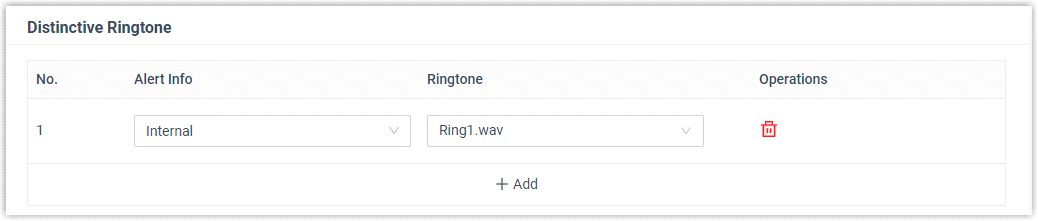
- Click Save.
- Reprovision the phone to take effect.
- Go to Auto Provisioning > Phones.
- Click
 beside the phone assigned
to the user's extension.
beside the phone assigned
to the user's extension.
Result
The user's phone plays ringtone Ring1.wav when receiving internal calls.
Set Distinctive Ringtones for External Calls
You can set distinctive ringtones on different inbound routes. When an extension user hears the ringtone of an external incoming call, the user may notice the intention of the call.
Procedure
Set alert info for external calls on the PBX
- Log in to PBX web portal, go to Call Control > Inbound Route, edit a desired inbound route.
- In the General section, enter an alert info in the Inbound Alert Info field.
The alert info is used to trigger IP phones to play a specific ringtone when receiving external calls from the inbound route.
In this example, set alert info to international to identify international calls.

- Click Save and Apply.
Set a specific ringtone for a phone
For users who want to play a specific ringtone for external calls on their phones,
you can set a specific tone for their extensions by auto provisioning.
Note: Users can
also log in to phone web interface to set distinctive ringtone manually on their
own IP phones. For more information, contact the phone manufacturer.
- Prerequisites
- The user's extension should have been associated with a phone.
For more information, see Auto Provision IP Phones.
- Procedure
- Set distinctive ringtones for a user.
- Log in to PBX web portal, go to Extension and Trunk > Extension, edit the user's extension.
- Click the Phone tab.
- In the Distinctive Ringtone section, click Add.
- In the Alert Info field, select the alert info that is pre-defined for external calls.
In this example, select international.
- In the Ringtone field, select a specific ringtone for international calls.
In this example, select Ring2.wav.
Note: The available ringtones vary by phone models.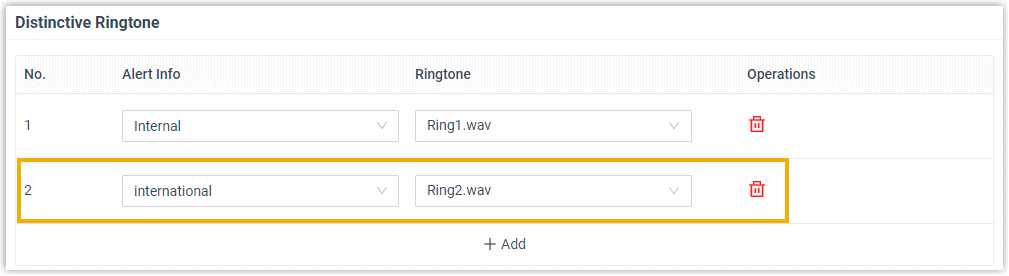
- Click Save.
- Reprovision the phone to take effect.
- Go to Auto Provisioning > Phones.
- Click beside the phone assigned
to user's extension.
Result
The user's phone plays ringtone Ring2.wav when receiving external calls from the specific inbound route.
Set Distinctive Ringtones for Queue Calls
You can set a unique ring tone per call queue so that the agents can easily identify who is calling. This is especially useful for the agents who are in multiple call queues to help them identify calls.
Procedure
Set an alert info for queue calls on the PBX
- Log in to PBX web portal, go to Call Features > Queue, edit a desired queue.
- Click the Preferences tab.
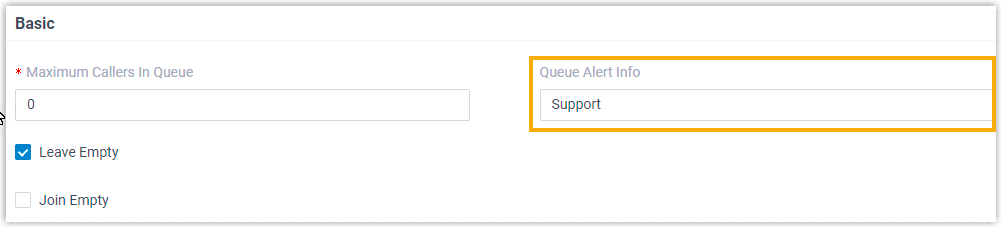
- In the Basic section, enter an alert info in the Queue Alert Info field.
The alert info is used to trigger IP phones to play a specific ring tone when receiving a call through this queue.
In this example, set the alert info to Support.
Set a specific ring tone for a phone
For the agents who want to play unique ring tones for different queue calls on their
phones, you can set distinctive ring tones for their phones by auto provisioning.
Note: Users can
also log in to phone web interface to set distinctive ring tone manually on
their own IP phones. For more information, contact the phone
manufacturer.
- Prerequisites
- The agent's extension should have been associated with a phone.
For more information, see Auto Provision IP Phones.
- Procedure
- Set a specific queue ring tone for an agent's phone.
- Log in to PBX web portal, go to Extension and Trunk > Extension, edit the agent's extension.
- Click the Phone tab.
- In the Distinctive Ringtone section, click Add.
- In the Alert Info field, select the alert info that is pre-defined for queue calls.
In this example, select Support.
- In the Ringtone field, select a specific ring tone for the queue calls.
In this example, select Ring3.wav.
Note: The available ring tones vary by phone models.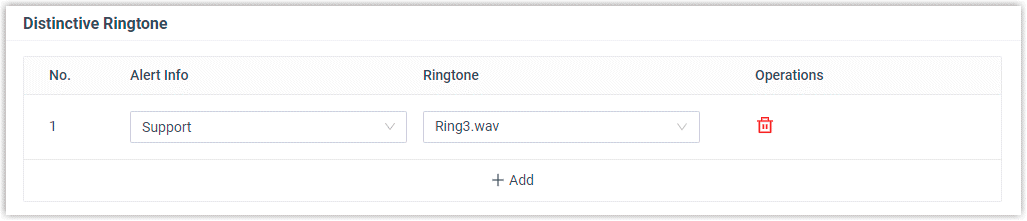
- Click Save.
- Reprovision the phone to take effect.
- Go to Auto Provisioning > Phones.
- Click beside the phone assigned
to agent's extension.
Result
The agent's phone plays ringtone Ring3.wav when receiving calls from the Support queue.
Set Distinctive Ringtones for Ring Group Calls
You can set a unique ringtone per ring group so that the members can easily identify who is calling. This is especially useful for the members who are in multiple ring groups to help them identify calls.
Procedure
Set an alert info for ring group calls on the PBX
- Log in to PBX web portal, go to Call Features > Ring Group, edit a desired ring group.
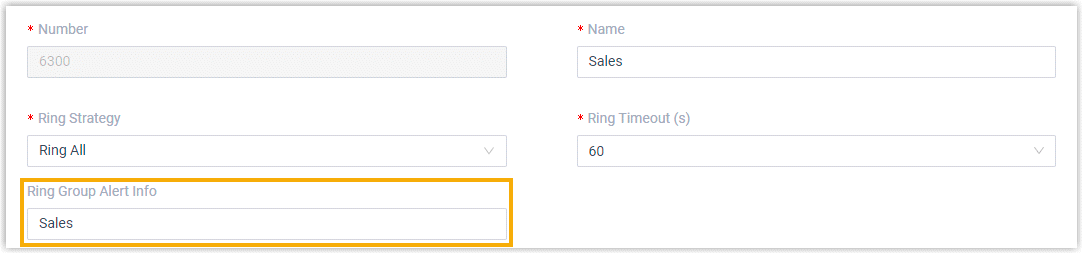
- In the Ring Group Alert Info section, enter an alert info.
The alert info is used to trigger IP phones to play a specific ringtone when receiving a call through this ring group.
In this example, set alert info to Sales.
Set a specific ringtone for a phone
For ring group members who want to play a specific ringtone for ring group calls on
their phones, you can set a specific tone for their extensions by auto provisioning.
Note: Users can
also log in to phone web interface to set distinctive ringtone manually on their
own IP phones. For more information, contact the phone manufacturer.
- Prerequisites
- The ring group member's extension should have been associated with a phone.
For more information, see Auto Provision IP Phones.
- Procedure
- Set a specific ringtone for a ring group member.
- Log in to PBX web portal, go to Extension and Trunk > Extension, edit ring group member's extension.
- Click the Phone tab.
- In the Distinctive Ringtone section, click Add.
- In the Alert Info field, select the alert info that is pre-defined for ring group calls.
In this example, we select Sales.
- In the Ringtone field, select a specific ringtone for the ring group calls.
In this example, we select Ring4.wav.
Note: The available ringtones vary by phone models.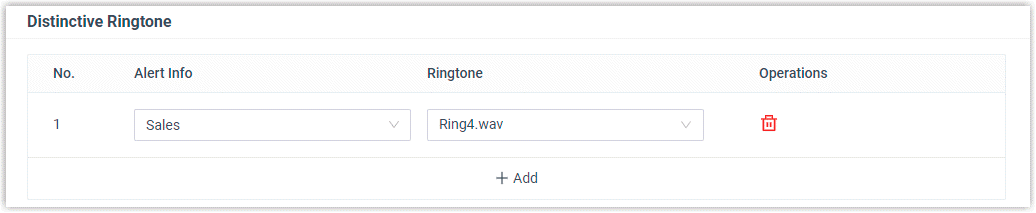
- Click Save.
- Reprovision the phone to take effect.
- Go to Auto Provisioning > Phones.
- Click beside the phone assigned
to ring group member's extension.
Result
The ring group member's phone plays ringtone Ring4.wav when receiving calls
from the Sales ring group.
 Set Distinctive Ringtones for IVR Calls
Set Distinctive Ringtones for IVR Calls
You can set a unique ringtone per IVR so that the extension users can easily identify who is calling.
Procedure
Set an alert info for IVR calls on the PBX
- Log in to PBX web portal, go to Call Features > IVR.
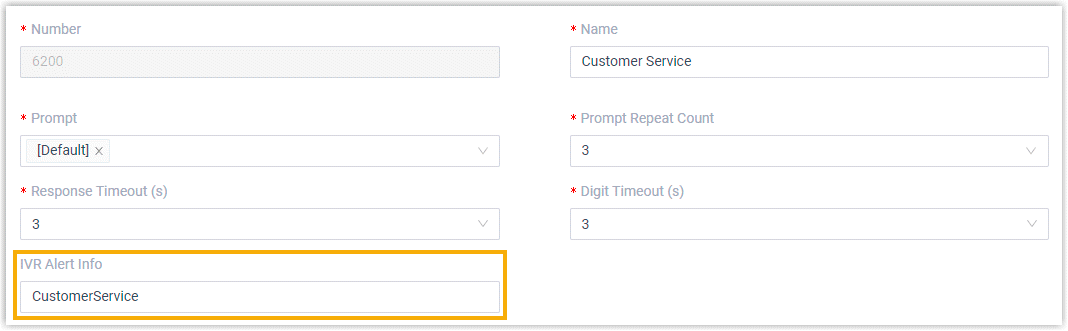
- In the IVR Alert Info field, enter an alert info.
The alert info is used to trigger IP phones to play a specific ringtone when receiving a call through this IVR.
In this example, set alert info to CustomerService.
Set a specific ringtone for a phone
For users who want to play a specific ringtone for IVR calls on their phones, you can
set a specific tone for their extensions by auto provisioning.
Note: Users can
also log in to phone web interface to set distinctive ringtone manually on their
own IP phones. For more information, contact the phone manufacturer.
- Prerequisites
- The user's extension should have been associated with a phone.
For more information, see Auto Provision IP Phones.
- Procedure
- Set a specific ringtone for a user.
- Log in to PBX web portal, go to Extension and Trunk > Extension, edit the user's extension.
- Click the Phone tab.
- In the Distinctive Ringtone section, click Add.
- In the Alert Info field, select the alert info that is pre-defined for IVR calls.
In this example, select CustomerService.
- In the Ringtone field, select a specific ringtone for the IVR calls.
In this example, select Ring5.wav.
Note: The available ringtones vary by phone models.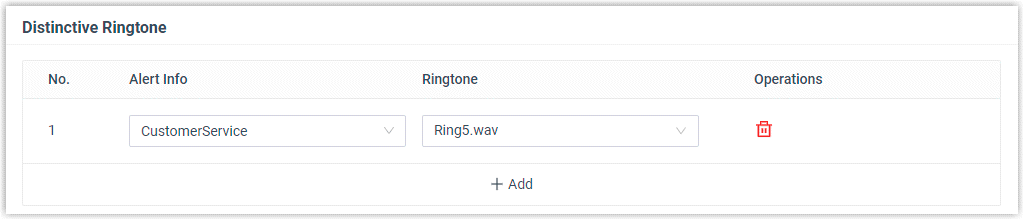
- Click Save.
- Reprovision the phone to take effect.
- Go to Auto Provisioning > Phones.
- Click beside the phone assigned
to user's extension.
Result
The user's phone plays ringtone Ring5.wav when receiving calls from CustomerService IVR.
Related Articles
Yeastar - Fanvil Distinctive Ring
Distinctive Ringtone Fanvil When an extension user hears the ringtone of an internal incoming call, the user may notice the intention of the call. This topic describes how to set distinctive ringtones for internal calls on users' IP phones. Set an ...Yeastar - Avaya J Series - Distinctive Ringtones
Avaya J Series - Distinctive Ringtones Utilizing the Avaya J Series custom template to provision your Avaya handsets on Yeastar PBX you can allocate custom ringtone to groups & queues in the Yeastar for differential notification on Avaya J series ...Yeastar distinctive ring on Grandstream handsets.
Refer to : https://commsplus.zohodesk.com.au/portal/en/kb/articles/yeastar-distinctive-ring for an overview on Distinctive ring. For Grandstream we still set the Alert_info up for Set Distinctive Ringtones for External Calls Set Distinctive Ringtones ...Yeastar - Avaya Custom Configuration File - Latest File_12_09
Avaya Custom Configuration File - Latest File The latest Custom Configuration File for Avaya J series can be downloaded. As updates are release features are added to the configuration file to expanding on all previous additions. Links to Guides for ...Yeastar - Ring Group Creation
Log in to PBX web portal, go to Call Features > Ring Group, click Add. Configure the ring group. Number: Enter a virtual number for callers to access the group. The default ring group number range is from 6300 to 6399. Name: Enter a group name to ...