Yeastar - Synchronize Users from Microsoft Entra ID to Yeastar P-Series Cloud Edition
Synchronize Users from Microsoft Entra ID to Yeastar P-Series Cloud Edition
How to customize synchronization rule based on users, so as to synchronize users from Microsoft Entra ID to Yeastar PBX system.
Limitation
The number of users that can be synced from Microsoft Entra ID to PBX depends on the number of extensions that PBX system can create.
Prerequisites
You have integrated Yeastar PBX with Microsoft Entra ID.
Steps to Synchronize Users
Synchronize Microsoft Entra ID users within a specified range
- Log in to PBX web portal, go to Integrations > Collaboration.
- In the User Synchronization section, turn on the switch.
3. In the User Range for Extension Auto Creation drop-down list, specify the users that you want to synchronize to PBX and create extensions for them.
Option | Description |
All Users | Synchronize all users from Microsoft Entra ID to PBX and create extensions for them. |
Users Of Specific Type | Synchronize the specified type(s) of users from Microsoft Entra ID to PBX and create extensions for them. You need to select the desired user type(s) in the User Type drop-down list.
|
Users in Specific Group | Synchronize the users within the specified group(s) from Microsoft Entra ID to PBX and create extensions for them. You need to select the desired group(s) in the Group drop-down list. |

In future use, if you change the range of users to be synced, you can decide how to deal with the extensions that are no longer synced from the users in Microsoft Entra ID via the Auto delete the Extensions no longer in sync option.
- If selected, the extensions will be deleted during the next synchronization.
- If unselected, the extensions will be retained and fully managed by the PBX.
4. In the User's Extension Number drop-down list, configure the extension number assignment rule.
Option | Description |
Assign Automatically | Assign extension numbers from a specific starting number. You need to specify the starting number in the Start Extension Number from field. |
Read Specific Property Value | Assign extension numbers based on users' property value. This can be used in the scenario that the users already have phone extensions assigned in Microsoft Entra ID, and you want to keep their extension numbers instead of assigning new ones. You need to specify the property where the users' extension numbers are stored (e.g. businessPhones) in the Property Name field. |
5. In the Delete the Extension when its associated user account is drop-down list, select the account status(es) at which PBX will stop syncing from the users, and delete the associated extensions.
| Option | Description |
| Disabled | If an user account is disabled in Microsoft Entra ID, PBX will stop syncing from the user and delete the associated extension. |
| Deleted | If a user account is deleted in Microsoft Entra ID, PBX will stop syncing from the user and delete the associated extension. |
6. If a user account is deleted in Microsoft Entra ID, PBX will stop syncing from the user and delete the associated extension.
| Option | Description |
| Auto associate Extensions with the Users that share the same email address | Decide whether to sync users from Microsoft Entra ID to PBX when the users have the same email addresses with existing extensions.
|
| Send Welcome Email automatically after an extension is created | Decide whether to send Linkus Welcome Email to the synced users. |
User Avatar Synchronization | Decide whether to synchronize Entra ID users' avatars to the PBX extensions.  This feature performs a one-way synchronization of user avatars from Microsoft Entra ID to the PBX. After synchronization, the extension's avatar becomes read-only and cannot be modified by users via their Linkus clients. |
7. In the Map section, select and map the fields for the user information you want to synchronize.
- Refer to Microsoft User Properties to fill in the Azure Active Directory fields.
- If the mapping is disabled (either for a specific field or all PBX fields), the corresponding information will not be synchronized, and you can edit these extension's information directly on the PBX.
8. Click Save.
- If it is the FIRST time you save the synchronization-related settings, PBX will perform the initial synchronization immediately.
- Otherwise, you can manually perform a directory synchronization or wait for the automatic directory synchronization.
Synchronize specific Microsoft Entra ID users
- Specify the group(s) where the PBX can search for Microsoft Entra ID users, then manually select the desired Microsoft Entra ID users to be synchronized to PBX, and individually associate PBX extensions for these users.
- Log in to PBX web portal, go to Integrations > Collaboration.
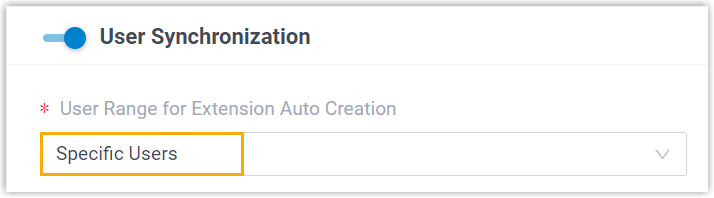
- In the User Synchronization section, turn on the switch.

- In the User Range for Extension Auto Creation drop-down list, select Specific Users.
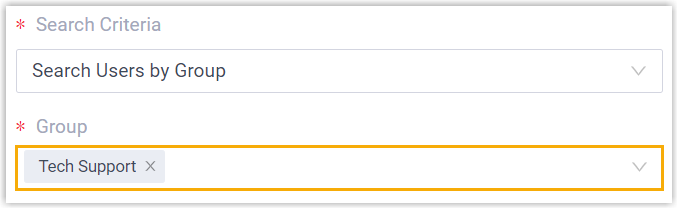
- In the Search Criteria and Group drop-down lists, specify the search scope in which PBX can search the Microsoft Entra ID users.
- Click Search Users.
PBX searches Microsoft Entra ID users within the specified scope, and displays users in the Search Result List.
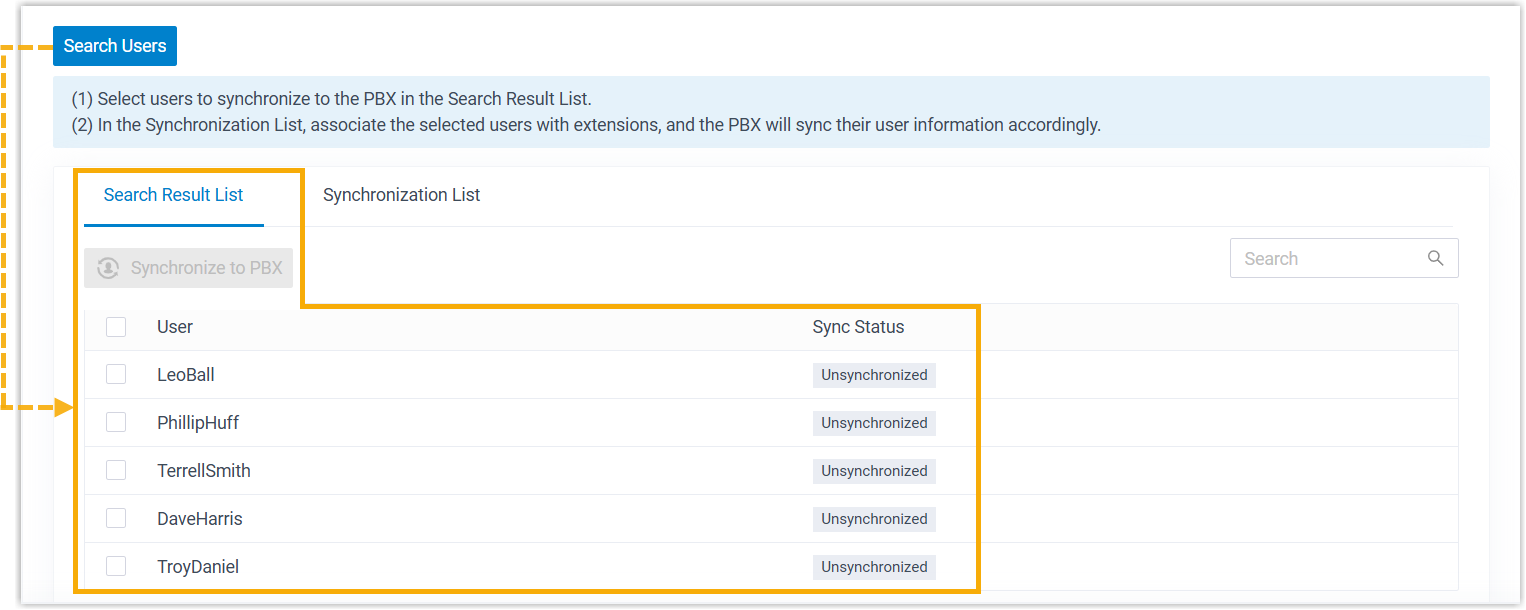
You can quickly locate the desired Microsoft Entra ID users by entering their username on the Search field at the top-right corner.
6. Select the desired Microsoft Entra ID user(s) for synchronization, then click Synchronize to PBX.
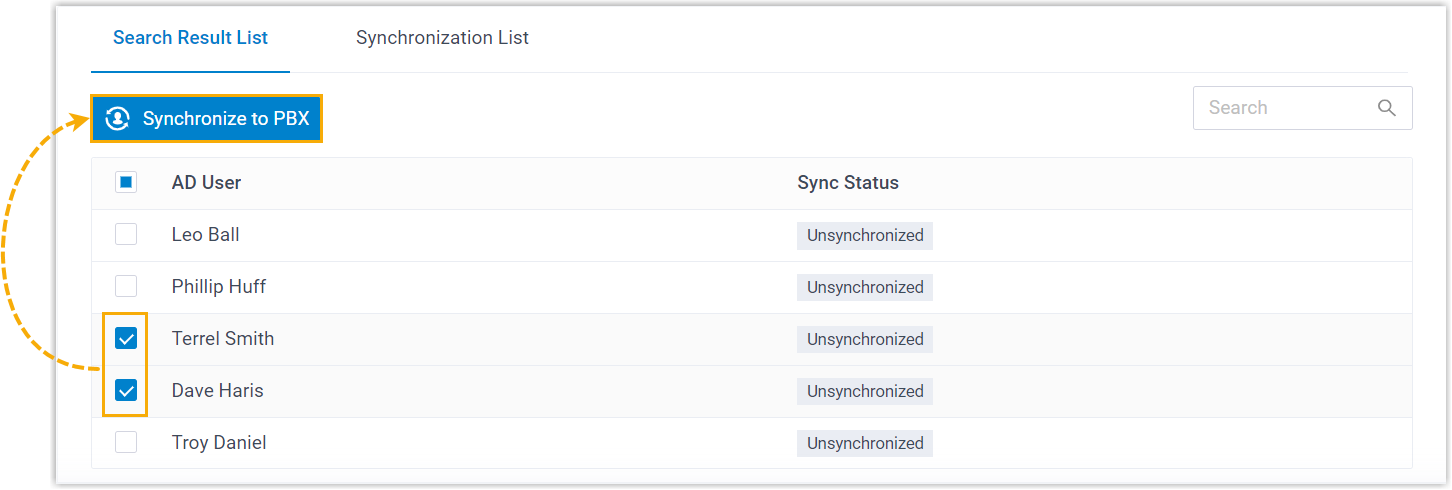
The selected Microsoft Entra ID users are added to the Synchronization List.
7. In the Associate with Extension drop-down list beside the Microsoft Entra ID user, select an extension to assign to the Microsoft Entra ID user.
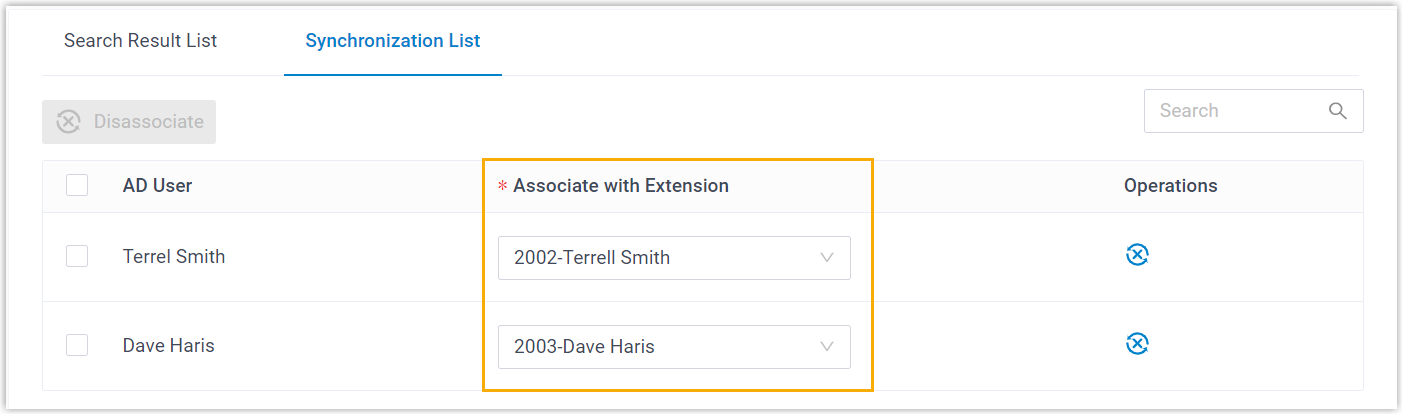

To disassociate a synced Microsoft Entra ID user with the PBX extension, select the desired Microsoft Entra ID user and click Disassociate button on the top of the list. After you save the setting, the Microsoft Entra ID user will be successfully disassociated with the extension.
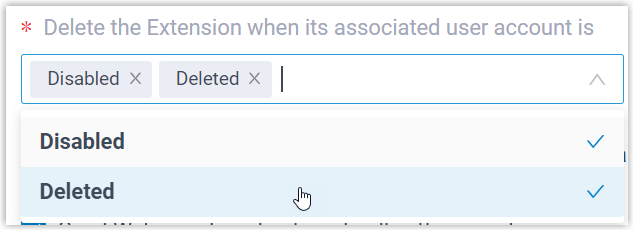
8. In the Delete the Extension when its associated user account is drop-down list, select the account status(es) at which PBX will stop syncing from the users, and delete the associated extensions.
| Option | Description |
| Disabled | If an user account is disabled in Microsoft Entra ID, PBX will stop syncing from the user and delete the associated extension. |
| Deleted | If a user account is deleted in Microsoft Entra ID, PBX will stop syncing from the user and delete the associated extension. |
9. Set the following synchronization options according to your needs.

| Option | Description |
| Send Welcome Email automatically after an extension is created | Decide whether to send Linkus Welcome Email to the synced users. |
| User Avatar Synchronization | Decide whether to synchronize Entra ID users' avatars to the PBX extensions. This feature performs a one-way synchronization of user avatars from Microsoft Entra ID to the PBX. After synchronization, the extension's avatar becomes read-only and cannot be modified by users via their Linkus clients. |
10. In the Map section, select and map the fields for the user information you want to synchronize

- If the mapping is disabled (either for a specific field or all PBX fields), the corresponding information will not be synchronized, and you can edit these extension's information directly on the PBX.
11. Click Save.
If it is the FIRST time you save the synchronization-related settings, PBX will perform the initial synchronization immediately.
Otherwise, you can manually perform a directory synchronization or wait for the automatic directory synchronization.
Result
You have created your custom synchronization rule for synchronizing users from Microsoft Entra ID to the PBX.
During a synchronization process, PBX system performs queries within the Microsoft Entra ID based on the rule, and synchronizes the desired users as well as the updated information to PBX. After the synchronization, the followings can be implemented:
- You can check the synchronization result in the User Synchronization section.
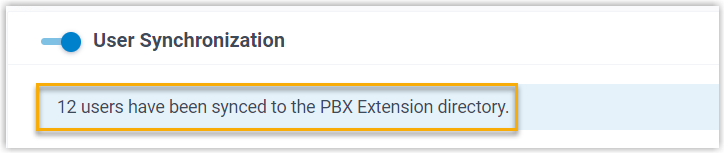
- The PBX extensions that are associated with users in Microsoft Entra ID come with a label
 , and can not be manually deleted on PBX.
 - If the mapping feature is enabled, you can NOT manually update the following information of the PBX extensions that are associated with users in Microsoft Entra ID on PBX.
- Last name
- First name
- Email Address
- Mobile Number
- Job Title
In such case, the information can only be modified within the Microsoft Entra ID and updated to the PBX during a synchronization.
Next Action - Users login with SSO
Related Articles
Yeastar-Changing Caller ID outbound on Access 4 Trunks
Access4 TLS trunks on Yeastar Changing caller ID outbound on Yeastar using Access 4 trunks Log in to Yeastar Portal Extension and Trunk Trunk You will see our Trunk user name and password , this by default is what is being sent outbound To change ...Yeastar - Obtain Redirect URI's From PBX
Obtain Redirect URI's From PBX Obtain redirect URIs from Yeastar P-Series Cloud Edition, you will need the information when configuring a Microsoft Entra application for the integration. Log in to PBX web portal, go to Integrations > Collaboration. ...Activate and Initially Set up Yeastar P-Series Software Edition
Activate and Initially Set up Yeastar P-Series Software Edition After you install Yeastar P-Series Software Edition, you need to activate and finish initial configurations for the system using the Installation Wizard. Prerequisites You have accessed ...Integrate Yeastar P-Series Cloud Edition with Telnyx Fax
Integrate Yeastar P-Series Cloud Edition with Telnyx Fax By integrating Yeastar P-Series Cloud Edition with Telnyx Fax, employees within your organization can send and receive faxes instantly and securely over the Internet - directly from their own ...Integrate Yeastar P-Series Cloud Edition with Telnyx Fax
By integrating Yeastar P-Series Cloud Edition with Telnyx Fax, employees within your organization can send and receive faxes instantly and securely over the Internet - directly from their own Linkus Desktop or Web Client. Introduction Yeastar ...